
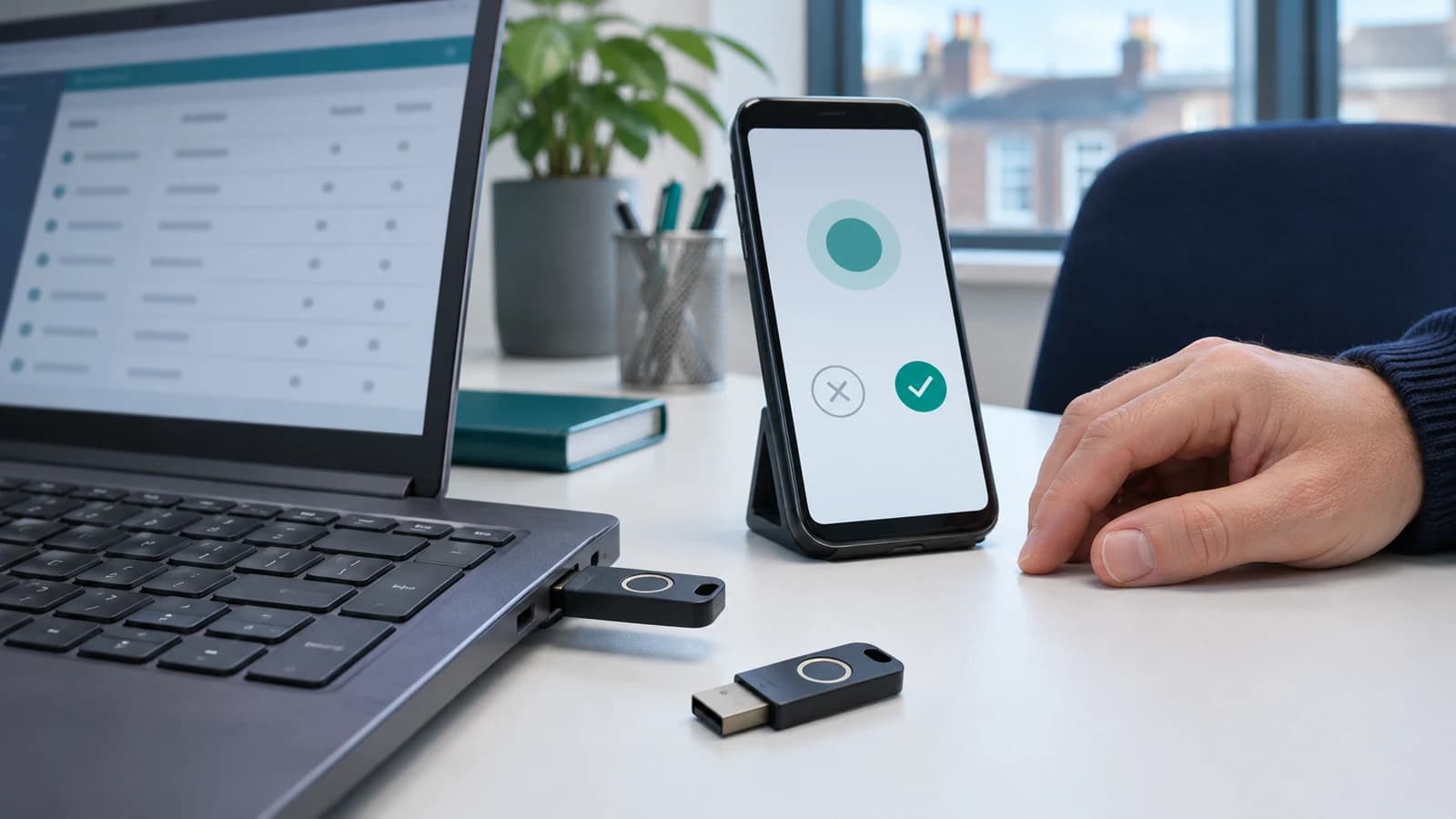
A Microsoft 365 Business Premium security setup should finish with evidence of coverage, rather than a list of licences bought. Ask your provider to separate assigning subscriptions from configuring protection: Microsoft’s Defender for Business setup process treats licence assignment, device onboarding and policy review as separate steps.[1] Your handover should show what was completed and what remains outside the agreed scope.
For a small business, we recommend agreeing the acceptance checks before work starts. Name the people and devices involved, decide which changes need testing, and identify who will deal with alerts afterwards. You should be able to ask about a particular laptop or account and get a clear answer without having to interpret a security dashboard yourself.
Start with the people and devices in scope
Request a current record of staff accounts, company computers and the personal devices used for work. Include shared machines and occasional users. Ask the provider to explain any differences between that record and the proposed deployment. A director’s second laptop should not disappear from the conversation because it was at home during discovery.
Have the provider confirm licence requirements against the intended configuration, including any servers or specialist systems. Microsoft’s setup guidance points server customers to separate licensing information.[1] Do not assume every item on your network is covered by the same subscription. Record exclusions and who will look after them before accepting the quote.
Agree how staff will sign in
Ask which sign-in approach the provider intends to use and why. Microsoft distinguishes security defaults from Conditional Access policies, with Conditional Access requiring Microsoft Entra ID P1 or P2.[2] Have the administrator explain the proposed rules in business terms, including who they affect and which exceptions are necessary.
We recommend a small pilot before wider changes. Include someone working remotely and someone using an essential business application. Agree what successful access and an expected refusal should look like. Ask how staff will recover access if their usual verification method becomes unavailable, and who can help without casually weakening the agreed controls.
Check actual device coverage
Request the onboarded-device list and compare it with your equipment record. Microsoft provides a device inventory check as part of Defender for Business onboarding.[3] For each expected computer, ask the provider to demonstrate its current status and explain anything missing. An installed application icon alone is not the acceptance evidence we would request.
Keep device management and threat protection as separate questions in the handover. Ask how each has been configured, which policies apply and whether another security supplier still has responsibilities. If existing software is being replaced, agree the transition and checks first. Do not ask staff to uninstall protection themselves to tidy up the rollout.
Name the person receiving alerts
Microsoft includes security-team permissions and email notifications in its Defender for Business setup process.[1] Ask the provider to show the agreed recipients, rather than simply confirming that notifications are enabled. Have somebody check that the destination is monitored by the right people and will remain usable when a staff member leaves.
Then agree the operational arrangements separately: monitoring hours, first contact, escalation and permission to take disruptive action. Request a safe, agreed notification test and a recorded result. Do not assume the licence includes a person watching every alert. Our guide to security-package alert response covers the service questions to settle alongside the technical setup.
Record exceptions before signing off
Ask for one short acceptance record linking each promised control to the relevant users or devices and the evidence checked. Keep unresolved items visible. If an older application needs an exception, record the business reason, approver and review date. A temporary exception should have an owner who knows it still exists.
Avoid asking the provider to prove the business is completely secure. Instead, ask it to demonstrate the agreed configuration, explain the remaining risks and identify follow-up work. Our Secure Score guide explains why a percentage is not a security guarantee. Use the deployment record to keep that conversation tied to your actual setup.
Make the next review practical
Keep the handover somewhere the business controls, with access restricted appropriately. Agree when you will review coverage and what should trigger an earlier check, such as a new starter, replacement laptop or change of support provider. Ask who updates the record so it does not become a snapshot that nobody maintains.
If you already pay for Business Premium but cannot get these answers, ask BMT to review your Microsoft 365 setup. Bring your subscription list, device record and any existing handover. The first useful outcome is a clear account of what is configured, what needs checking and who is responsible for the next action.
Sources
[1] Microsoft: Set up and configure Defender for Business