Android “booster” apps that slow your phone—then charge to “speed it up”
The con in a nutshell
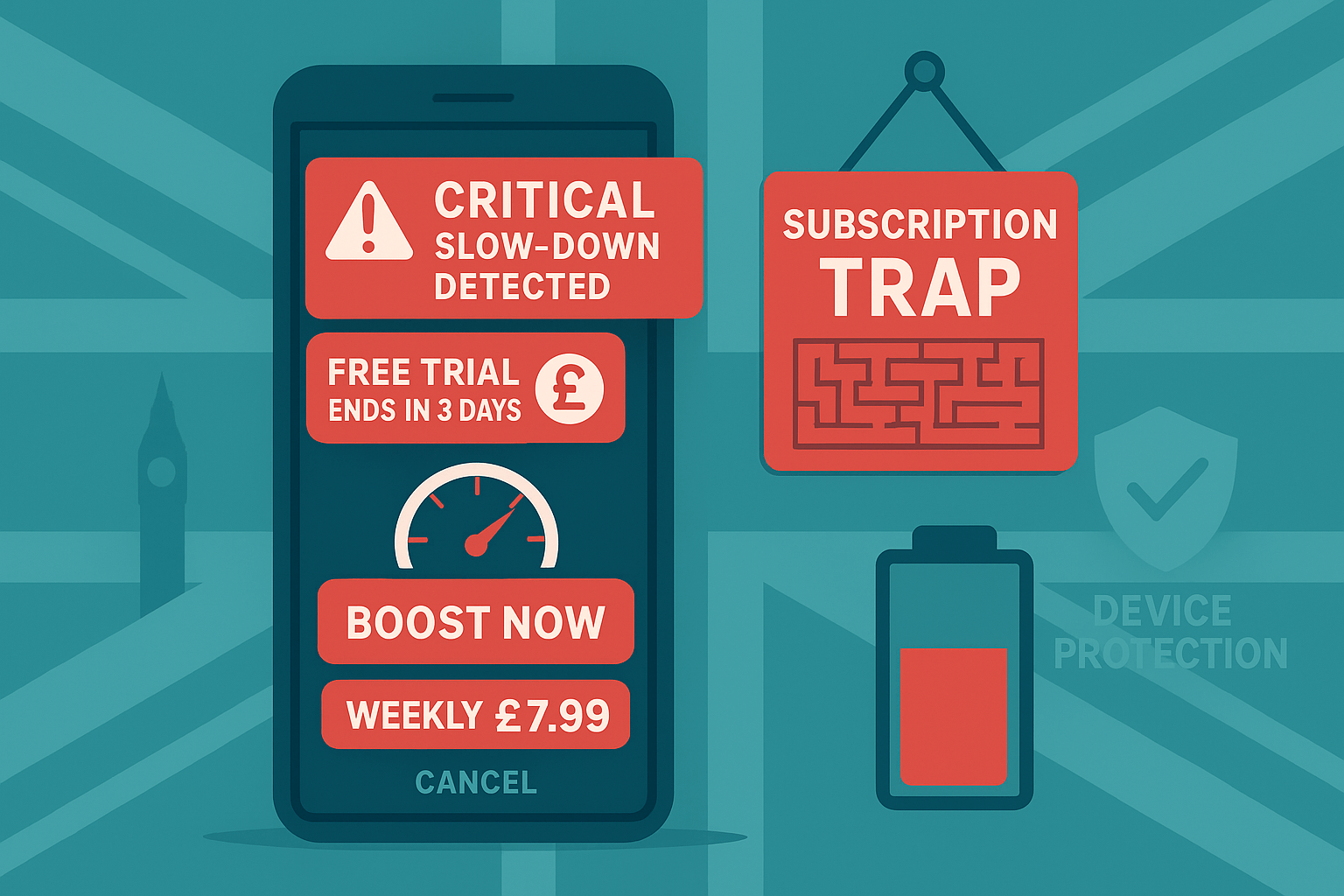
Many “phone optimizer” apps promise instant speed-ups. The Android operating system automatically handles memory management by maintaining full RAM capacity to enable fast app re-opening. The process of killing apps or forcing “RAM frees” results in slower performance and battery drain because Android needs to reload necessary components. Some bad actors implement fleeceware tactics by offering attractive free trials that transform into costly subscriptions for unneeded basic features and by using fake performance alerts to force users into payment. Google views this type of misrepresentation as unwanted behavior and has started to limit the capabilities of these apps.
Red flags to watch for
Hyped claims. If an app promises to “turbocharge your CPU”, “boost RAM by 300%” or “make your phone 5× faster”, treat it as marketing fluff at best and a red flag at worst. Third-party apps can’t magically accelerate Android’s core systems, and modern Android already optimises memory and background tasks on its own.
Scare tactics. Be cautious of pop-ups shouting that your device is in a “critical state”, “severely slowed”, or even “infected”, followed by a push to upgrade to premium. The alerts function to create panic so you will pay especially when they appear seconds after installation and before any real scan has run.
Aggressive trials and subscriptions. The three-day “free” trial period functions as a warning sign because it automatically turns into a weekly subscription charge. Uninstalling does not cancel a Play Store subscription—you must cancel it in Google Play → Payments & subscriptions. If an app’s pricing is hard to find or the cancel button is buried, walk away.
Ad overload and background drains. Ironically, many “optimisers” slow your phone by running constant background services, showing lock-screen ads, and waking themselves up frequently. The presence of a booster on your phone that causes it to function poorly indicates you should uninstall the booster.
Do this instead (no payment required)
Use Android’s built-in protections. First, switch on Google Play Protect and run a scan. The system performs checks on apps before and after installation and provides warnings about misleading software while also enabling the disabling of harmful behaviors. It’s free, always on, and maintained by Google.
Clean safely with Google’s own tools. Install Files by Google and use the Clean tab to remove temporary files, old downloads, duplicate media and other space-hogs. The app does not enhance CPU performance but it will release storage space and improve your phone’s responsiveness at no cost.
Update and reboot. Check for system updates and app updates in the Play Store before you install anything. Then restart your phone. A simple reboot clears temporary glitches and is often all you need.
Audit battery and background use. In Settings → Battery → Battery usage, look for apps with unusually high background activity. You should either restrict the background use of a particular app or uninstall it if it is consuming power or keeping your phone awake.
Uninstall the “booster.” Long-press the app’s icon and tap Uninstall. If it refuses because it’s a Device Admin, go to Settings → Security → Device admin apps, remove its admin privileges, then uninstall. Your phone shouldn’t need a booster to run well.
Stick to trusted sources. Download from Google Play and be cautious with sideloading. Check recent reviews and the developer’s website and avoid apps that only promise to speed up your device.
If you’ve already installed one
Run a security check. Open the Play Store, go to Play Protect, and start a scan. Remove any flagged items right away and perform a second scan after restarting your computer to verify that no previously disabled items have reactivated.
Cancel the subscription (uninstalling isn’t enough). Go to Google Play → Profile → Payments & subscriptions → Subscriptions, choose the app, and tap Cancel. Keep the confirmation email for your records in case you need to dispute a charge later.
Ask for a refund. You can request a refund through the Play Store if your purchase occurred within the last 48 hours. Contact the developer directly after the window has passed and mention UK consumer law regarding misleading practices and subscription traps. Your card provider may also help if you were misled.
Tidy up and secure your accounts. After removal, change passwords you used while the app was installed, enable two-factor authentication on your Google account, and review app permissions to ensure nothing unnecessary is lingering.
Your UK rights (and how to use them)
Cooling-off and cancellations. UK rules for distance selling generally give you a cooling-off period for services and subscriptions. Digital content can be different once it’s been accessed, but you still have rights—especially if you were misled about price, features or cancellation.
Subscription traps crackdown. The new UK legislation improves subscription protection through requirements for better sign-up details and automatic renewal reminders and simple cancellation procedures. The situation you find yourself in becomes important when you request redress because you were either forced to pay or struggled to stop.
Get help and report issues. The developer needs to follow the game rules. If a developer refuses to play fair Citizens Advice will help you understand your options which include chargebacks and formal complaints. You can also report suspicious apps and fraud attempts to Action Fraud, which helps authorities track patterns.
What legit security looks like on Android
Honest about performance. Real security apps don’t promise miracle speed boosts. The main emphasis is on threats, safe browsing, and identity protection—not RAM wizardry—because Android handles performance differently to desktop systems.
Transparent about changes. A trustworthy app provides clear explanations about its scanning process and its modifications to system settings and their underlying reasons. The platform offers readable privacy policies and clear pricing information and an easy process to cancel subscriptions without any complications.
No fear-mongering upsells. Serious vendors don’t bombard you with “critical” warnings purely to push upgrades. The use of manufactured urgency by an app indicates you should remove it and select a trustworthy alternative.
Quick checklist for the blog footer
Turn on Play Protect and scan weekly. The weekly scan of Play Protect helps detect suspicious apps at an early stage before they begin consuming battery power or displaying premium notifications.
Use Files by Google to clean monthly. A monthly tidy-up of temp files, duplicate photos and giant downloads frees space and can stop those “storage almost full” slowdowns, all without risky “boosters.”
Review your Play Store subscriptions. Open Payments & subscriptions and cancel anything you don’t use. Users should develop a habit of checking their fleeceware apps because many of them depend on users forgetting about their trial periods.
Use your cooling-off rights. Take immediate action if you experience any misleading trial or if the app fails to deliver its promised features. The sooner you cancel and request a refund, the better your chances.
Report scams and get advice. Report all suspicious listings to Action Fraud and seek help from Citizens Advice for refund or subscription disputes with developers.