
Protecting Your Digital Life: A Complete Guide to BitLocker and FileVault for UK Users
Your laptop experiences theft while parked in the Manchester city centre area. The burglary at your Birmingham home office results in the theft of your desktop computer. All data including personal files and family photos and business documents and sensitive information stored on these devices disappears after theft.
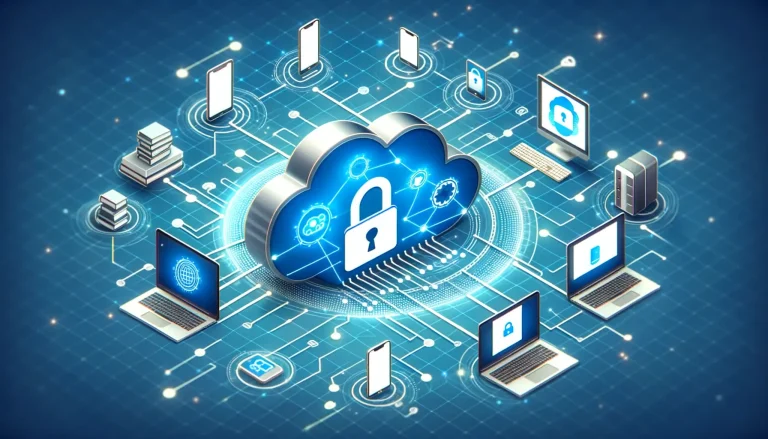
Without encryption the data becomes available to anyone within a few minutes. Your information stays protected from unauthorized access because BitLocker on Windows and FileVault on Mac function as secure digital containers that keep data locked even when a device is stolen from you.
What Are BitLocker and FileVault?
The encryption system called BitLocker and FileVault functions as digital security containers for protecting computer hard drives. Your files become unreadable scrambled data through encryption since both systems require proper decryption keys for access.
BitLocker functions as a built-in encryption tool available for Windows 10 and 11 Pro, Enterprise and Education versions. Full-disk encryption by Microsoft uses BitLocker as its encryption solution which safeguards both your system drive and any supplementary storage devices you wish to protect.
Apple has developed FileVault as its encryption solution for Mac computers. Mac OS X Lion introduced FileVault as a built-in encryption feature which uses military-grade XTS-AES-128 encryption to protect entire startup disks.
Once activated these tools function quietly in the background. These security tools operate automatically while maintaining data protection without any user input throughout the day.
Why UK Users Need Disk Encryption More Than Ever
Action Fraud published statistics showing UK cybercrime reports increased by 13% throughout 2023. Physical theft of computers and laptops continues to be a widespread issue mostly affecting cities including London and Manchester and Birmingham.
These typical situations impact British citizens as well as business organizations. Remote workers transfer between home and office using company laptops which contain sensitive client information. Students use devices to move between university locations while storing their personal documents together with their coursework on the devices. Small business owners use desktop computers in their offices to store customer data. Households store personal documents together with photos and financial records on shared home computers.
Every situation where other security measures fail finds protection through disk encryption.
The Security Benefits: Your Digital Insurance Policy
Protection Against Physical Theft
A stolen encrypted device becomes useless to thieves because they cannot transfer its hard drive to access your files on another computer. Your data stays encrypted when thieves attempt to access it because you hold the encryption key. Modern encryption schemes present such strong protection that skilled criminal hackers cannot break them within any practical period of time.
Safeguarding Sensitive Information
The devices of UK residents now contain more sensitive data than before. Financial documents along with online banking details provide information which could result in identity theft and financial fraud. Personal photos and videos hold such great value that numerous people would pay large amounts to retrieve them. Professional relationships might suffer damage when client information or work files become compromised. The protection of children’s school records along with their personal details falls under mandatory data protection regulations. The privacy of medical information along with insurance documents must be maintained because they contain highly sensitive personal data.
The information stays confidential because encryption protects it against breaches that compromise device security through malware attacks and physical intrusions and security breaches.
Compliance with UK Data Protection Laws
Business users need encryption to fulfill GDPR requirements regarding personal data protection. Encryption of customer data together with employee records and business-sensitive information proves your organization’s commitment to protecting data according to regulations. Encryption establishes strong protection against legal repercussions and financial penalties which become effective during data breaches.
Peace of Mind for Families
Family members can maintain peace of mind because their photos and children’s data along with household financial information stay protected. The security measures function continuously even after devices disappear during family vacations or when stolen from vehicles or lost on educational trips.
Real-World Use Cases for UK Users
The London Commuter
During her daily commute between Surrey and London office Sarah transports a laptop containing client presentations and sensitive company data. The use of BitLocker protection gives her complete peace of mind during unattended train rides and coffee shop stops. The confidential data of her clients remains totally secure from theft since her laptop was stolen.
The University Student
James works at Manchester University while spending his evenings in the library with his laptop displaying coursework alongside his personal files and family pictures. When his MacBook gets stolen from his student accommodation or left in a lecture hall FileVault protects his privacy. His academic work and personal information receive automatic protection without requiring any extra action from him.
The Small Business Owner
Mike manages his plumbing business in Leeds where he stores customer data alongside business accounts and invoices on his office computer. BitLocker protects his clients’ personal information and business data from potential break-ins or opportunistic theft. He maintains customer trust and avoids potential GDPR violations through this protection mechanism.
The Remote Worker
Emma operates from her Edinburgh home office while handling sensitive HR information on behalf of her employer. The security of company information is protected by disk encryption regardless of whether she works at home or in a café or during business trips across Scotland. Her employer maintains complete trust that employee confidential data stays protected no matter where she operates from.
How to Enable Encryption on Windows: All Editions Covered
For Windows 10/11 Pro, Enterprise, and Education Users (BitLocker):
Begin the process by opening Settings then selecting Update & Security followed by Device encryption. The device encryption feature becomes available for activation with a single button click. Users can find additional BitLocker settings by performing a Start menu search for “BitLocker.”
Start the BitLocker setup by selecting your system drive then click “Turn on BitLocker.” Select a method for unlocking your drive when you start your computer. Select your preferred method between password, PIN or USB key based on your security requirements and comfort level.
Store your recovery key safely in multiple protected spots. Your recovery key functions as the only method to access your data in cases of forgotten passwords and technical problems. Users must decide between encrypting only used disk space for faster setup or encrypting the complete drive for maximum security.
Let the encryption process complete. The encryption duration depends on your drive size so you can continue using your computer as usual during this time.
For Windows 10/11 Home Users (Device Encryption):
Windows Home devices lack full BitLocker encryption but they do support Device Encryption functionality on qualified hardware systems. The encryption system provides equivalent protection while needing minimal configuration.
Open the Settings application then proceed to Update & Security followed by Device encryption to determine if Device Encryption is available. Check for a “Device encryption” section to confirm your device supports this feature. Enable the “Device encryption” feature by flipping it to On so your device will start encrypting data automatically using your Microsoft account credentials.
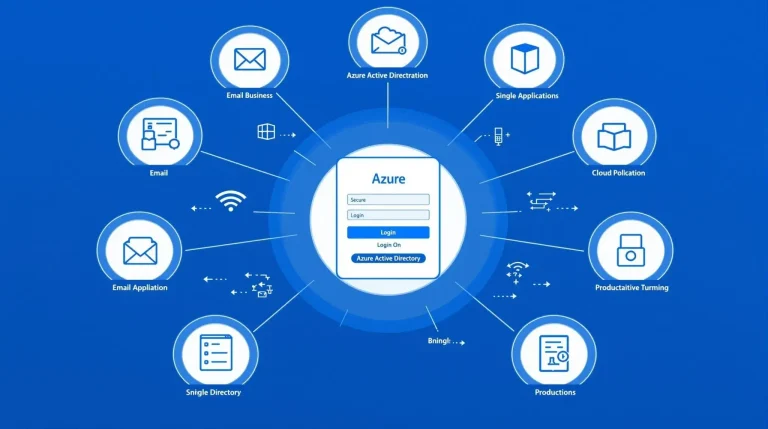
The functionality of Device Encryption depends on particular hardware and software requirements. The TPM 2.0 chip which modern laptops and desktops produced from 2016 onwards possess will work with Device Encryption. The majority of new computing devices have UEFI firmware installed by default. Your device needs to be signed in with a Microsoft account while also fulfilling specific hardware requirements or being connected to Azure AD.
Alternative for Windows Home: EFS (Encrypting File System)
Users of Windows Home who do not have Device Encryption enabled can protect specific files and folders through Encrypting File System which comes pre-installed.
Choose any file or folder you wish to encrypt then right-click on it and select Properties. Click the Advanced button to enable “Encrypt contents to secure data” encryption. Press OK followed by applying the changes to start the encryption process.
Decide which files you want to encrypt between individual selected items and their parent folder contents. Your selection determines which data gets encrypted along with how encryption works when you add new files.
EFS has important limitations to understand. The full-disk encryption capability of EFS does not extend to protect your entire storage drive but it can encrypt selected files and folders. Encryption through EFS becomes accessible only to your Windows user account thus preventing other users on the same computer from accessing the encrypted data. The encryption offered by EFS surpasses no encryption but does not match the level of protection achieved through complete disk encryption methods such as BitLocker.
Third-Party Options for Enhanced Home Security
Users of Windows Home operating systems have multiple encryption options to achieve full-disk encryption just like BitLocker.
The free and open-source full-disk encryption software VeraCrypt supports every version of Windows. The solution delivers strong security features with multiple encryption algorithms together with excellent privacy protection for users who value privacy. The setup process for VeraCrypt needs advanced technical expertise to achieve proper configuration.
Commercial security suites including Bitdefender Total Security provide disk encryption tools which work with Windows Home operating systems. Users who want these solutions receive benefits from simpler setup processes as well as seamless integration with their other security tools.
How to Enable FileVault on Mac
The process of enabling FileVault on macOS systems is simple and strongly advised for all users. Open System Preferences and select Security & Privacy. FileVault encryption settings become available when you access the FileVault tab from the main interface.
You need to click the lock icon followed by entering your administrator password before making any modifications. The setup process for encryption starts with the selection of “Turn On FileVault.”
The setup process for FileVault requires users to decide between iCloud account recovery or local recovery key generation. The ability to reset your password through iCloud serves as an advantage for users who want online password recovery capabilities. The local recovery key provides absolute control over your data yet you must ensure it remains safely stored.
Save your recovery information securely in multiple locations. The information serves as your entry point to access your data in case you forget your login password.
The encryption process starts after you restart your Mac. The encryption process conducted by FileVault operates in the background which determines the duration based on the amount of stored data.
Enterprise Benefits: Protecting UK Businesses
Regulatory Compliance
Under GDPR regulations UK businesses that handle personal data need to prove their appropriate security practices. Disk encryption creates an auditable record of protective measures which helps organizations prove their data security efforts during regulatory inspections. The protection stands as a critical requirement for businesses operating in healthcare and financial and professional services because they need to maintain absolute confidentiality for clients.
Reduced Breach Impact
Businesses that lose encrypted devices typically avoid both mandatory breach notifications to customers and mandatory breach reporting obligations. The encryption keys protect data from unauthorized access so the risk of actual data exposure remains minimal. The implementation of built-in encryption offers businesses substantial financial advantages together with damage control for their reputation in security breaches.
Remote Work Security
Business data remains secure on encrypted devices because they protect company information regardless of where employees work from within the UK. Business information maintained by encryption receives identical protection when employees operate from either their Scottish home offices or their London coffee shop workplaces.
Cost-Effective Protection
The costs of a data breach make built-in encryption an outstanding value proposition. The ICO imposes breach penalties of millions of pounds for serious security incidents. The expenses from legal fees together with customer compensation and damage to reputation often exceed what fines and penalties amount to. Encryption provides businesses with essential protection at no additional cost except for most organizations.
Common Concerns and Misconceptions
Performance Impact Worries
Many users worry that encryption will slow down their computer significantly. Modern computers achieve fast encryption because they have built-in dedicated hardware encryption systems. Users experience no changes to their daily activities including accessing files and running programs and system response time remains unaffected.
Password Recovery Fears
The main concern among users relates to losing access to their data permanently after forgetting their encryption password. Both BitLocker and FileVault deliver various recovery methods which prevent users from losing access to their data. The key to preventing this situation is to save your recovery key during setup. The recovery key provides an alternate method of access to your data which functions when you have forgotten your password completely.
Management Complexity
A few people mistakenly believe disk encryption demands continuous technical oversight and upkeep. After activation disk encryption starts working independently in the system background. You will enter your password during computer startup as you do when you log into your system. Users need not interact with the system because encryption and decryption occur automatically in the background.
Warranty Concerns
Users believe that enabling encryption features could result in their computer warranty becoming void. The activation of BitLocker and Device Encryption and FileVault as built-in encryption features will not void your warranty. The encryption functions are standard operating system features which manufacturers create and verify before delivering them to users.
Best Practices for UK Users
Immediately activate encryption features on new devices before you begin saving any sensitive information. Your data will receive complete protection because encryption starts from the first day and it prevents your critical information from remaining unsecured.
Keep recovery keys in multiple locations to guarantee you can retrieve your data at all times. Protect your recovery keys by storing them in both a password manager and printing a copy that goes into a safe and depositing the other copy into a safety deposit box while also sharing recovery information with a trusted family member.
Strong passwords should combine letters with numbers and symbols. Use a different encryption password than the passwords you use for your other accounts and services. A passphrase composed of multiple random words offers better security while remaining easier to remember.
Operating system updates should be maintained to preserve the effectiveness of encryption against new security threats. The implementation of security updates brings encryption algorithm enhancements and defense capabilities against newly discovered system vulnerabilities.
Business devices should receive professional setup for both appropriate configuration and security policy integration. The implementation of professional configuration helps organizations follow both regulatory requirements and best practices in their industry.
Taking Action: Your Next Steps
The protection of data exists to benefit all users regardless of their organization size or technical skills. The benefits of disk encryption apply to every UK computer user regardless of their location between Glasgow students and Cornwall retirees who perform online banking and manage family photographs.
The decision about encryption needs depends on the risk of not having it rather than its necessity. The encryption tools BitLocker, Device Encryption and FileVault operate automatically after basic setup making digital protection available to all users.
Modern encryption tools require basic technical knowledge to operate and activate automatically after initial setup. The brief setup time provides lasting peace of mind along with extended protection that will last throughout multiple years.
You need expert guidance for device protection but you are prepared to start the process. BM Technologies provides specialized encryption setup and cybersecurity solutions for homes and businesses across the UK. We will select the most suitable encryption solution based on your needs so you can rest assured in our digital environment.