What to Do When Your Old Laptop Won’t Power On (Plus Smart SSD Upgrade Tips)
Introduction
When your dependable laptop fails to turn on you can expect panic to hit fast especially if your important files and photographs remain at risk. The guide demonstrates your data recovery options alongside simple laptop preservation methods while explaining how a budget-friendly SSD upgrade enhances system speed and life expectancy.
1. If Your Laptop Doesn’t Power On
Common Causes:
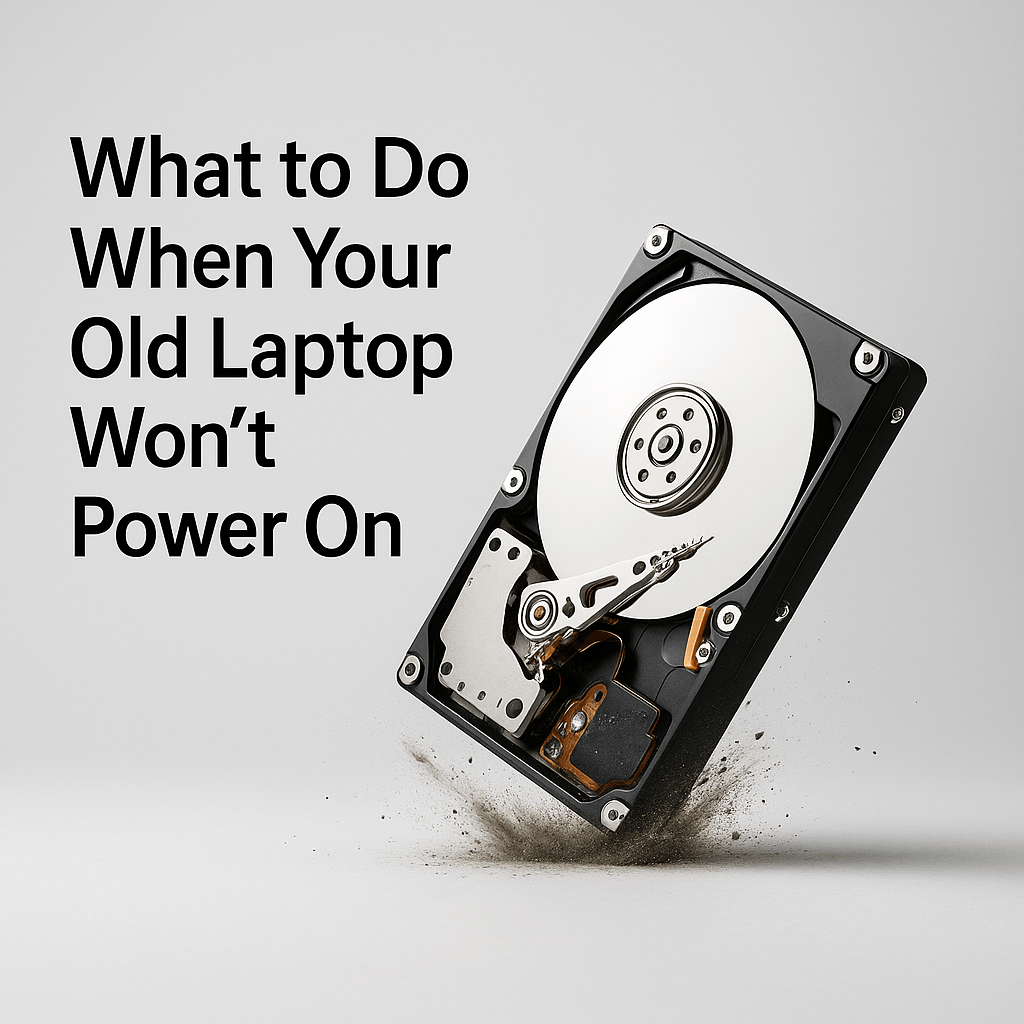
The leading cause of a non-booting laptop stems from mechanical problems within the hard drive such as head crashes or controller malfunctions. A power surge can cause damage to internal motherboard components. A laptop becomes unable to start up when physical damage occurs through either liquid spills or drops.
Your Data Recovery Options:
A professional cleanroom recovery service represents one possible solution. The most appropriate solution exists for physically harmed drives because trained experts can perform drive platter access within a dust-free space to safely extract data after replacing defective parts. The recovery process may become possible if you decide to replace the electronics board with an equivalent component from an identical drive. The electronics board fails while the platters remain functional which allows recovery through the use of suitable replacement components.
Why BM Technologies?
The data recovery service at BM Technologies operates on a “no data, no fee” basis because you will only need to pay when successful data recovery occurs. Our skilled technicians deliver clear diagnostic assessments to inform you about possible recovery options before you start working with us. Our team provides individualised support through local services with dependable assistance because we avoid the impersonal nature of call centers.
2. If It Still Powers On—Quick Tips
After your laptop starts up you should immediately perform file backup operations. Your important data can be protected through backup processes that transfer files to external hard drives and USB flash drives as well as cloud storage services.
You should run CHKDSK on Windows or SMART diagnostics to check your hard drive health after your system starts. These diagnostic tools allow you to detect early indications of failure so you can replace the drive before your data becomes irretrievable.
Your computer performance will improve when you remove all unnecessary startup programs that burden your hard drive. The performance speed and smooth operation of your system improves when you reduce the number of applications that load during startup.
Always verify that the cooling vents on your laptop remain clean and free from dust accumulation. The lifespan of your components decreases because of overheating while unexpected shutdowns and failures become more likely to occur.
3. Still Using an HDD? Why Upgrading to an SSD Makes Sense
The transition from a hard disk drive (HDD) to a solid-state drive (SSD) results in substantial performance enhancements for your system. Solid-state drives deliver immediate startup times and rapid application loading while traditional HDDs function at a slower pace because of their mechanical components. The random access performance of SSDs exceeds HDDs by more than 20000 percent even with high-performance HDDs in operation.
SATA SSDs reach speeds up to 600 MB/s but the new PCIe Gen5 NVMe drives achieve speeds exceeding 14,000 MB/s. The execution of basic tasks including system startup and program launching and file transfers becomes possible in mere seconds due to these improvements.
The absence of moving parts in SSDs results in superior durability compared to HDDs. The power consumption of SSDs is reduced and they work in silence and maintain data integrity through physical impacts. The durability of SSDs makes them perfect for portable devices since users move their laptops between locations.
SSDs demonstrate better longevity than HDDs because of their design. SSDs show a yearly failure rate ranging from 1% to 3% whereas traditional hard drives experience annual failure rates between 2% and 9%. This indicates SSDs maintain better reliability during equivalent usage periods.
4. Conclusion & Call to Action
The inability of a laptop to power on or its slowing down because of an outdated hard drive does not mean it has reached the end of its service life. BM Technologies stands ready to assist customers who encounter either complete power-on failures or want to overcome slow computer speeds. We provide professional “no data no fee” recovery services to retrieve your vital files in a safe manner.
Our company provides economical SSD upgrade solutions for laptops that still function with traditional HDDs. The simple switch to a solid-state drive will enhance your laptop’s performance speed while improving system dependability and extending its operational duration for better computing enjoyment.
Waiting until your system becomes nonfunctional or your data disappears should not be your strategy. Contact BM Technologies today for help restoring your laptop functionality and data integrity.